How to detect if Starlink is being jammed starts with recognizing a pattern that is more aggressive than normal weather fade. Unlike rain or snow, intentional interference often produces abrupt, synchronized failures across signal quality, latency, and packet loss while the sky remains clear.
How to Detect if Starlink Is Being Jammed: Core Symptoms
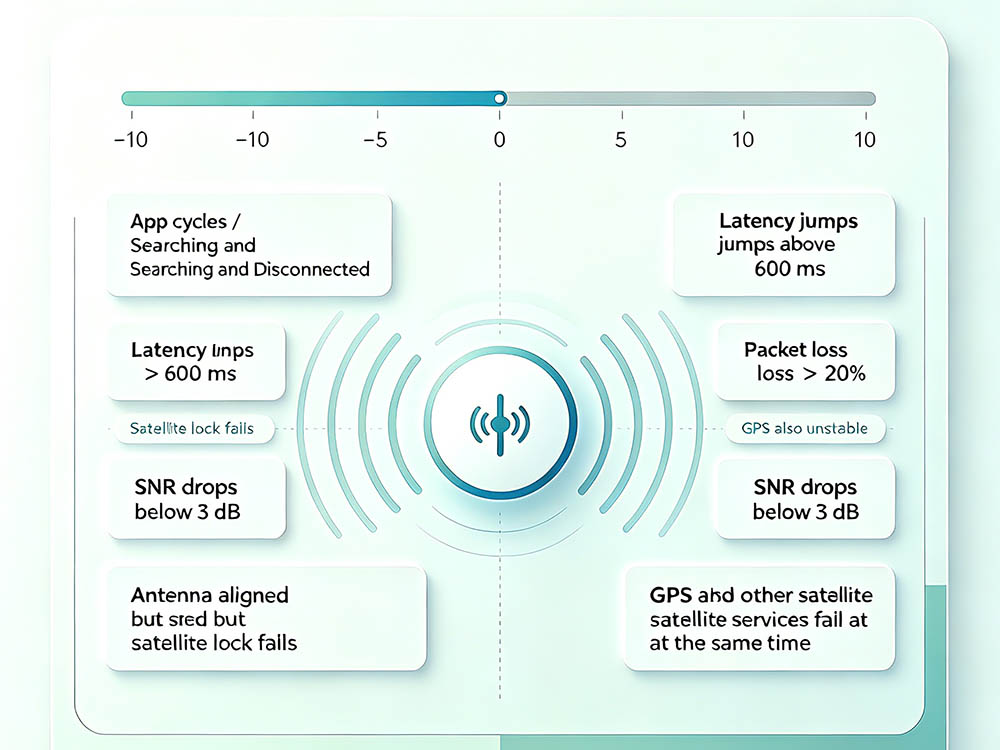
When a jammer targets the Ku or Ka band, the Starlink terminal may show one or more of these signs:
-
The app cycles between “Searching” and “Starlink Disconnected” every few seconds.
-
Latency jumps from 30–50 ms to over 600 ms, with packet loss above 20%.
-
SNR drops below 3 dB with no clouds, trees, or physical blockage.
-
The dish stays correctly oriented but cannot acquire satellites for several minutes.
-
Other satellite services, such as GPS, fail at the same time.
These are the first indicators that help you detect if Starlink is being jammed before hardware damage occurs. Compare these symptoms with normal rain fade. Rain fade typically degrades signal gradually and recovers as weather passes. Jamming, in contrast, often appears as a hard cut or a rhythmic pulse that matches an electronic source. A single symptom is not proof, but three or more together raise the probability sharply.
Quick Reference Table
| Symptom | What It Suggests | Immediate Action |
|---|---|---|
| Total signal loss in clear sky | Broadband interference | Check Starlink App debug data |
| Packet loss only at certain hours | Local jammer or timed source | Record timestamps and move terminal |
| SNR below 3 dB with no weather | In-band noise or deliberate jamming | Use a spectrum analyzer |
| Other satellite services fail too | Wideband interference nearby | Report to your regulator |
Diagnostic Steps to Detect if Starlink Is Being Jammed
You do not need lab-grade equipment for a basic check. Open the Starlink App’s statistics page and note the “Ping Drop Rate” and “Signal Quality” fields. If signal quality falls while the dish reports an unobstructed view, that is a red flag.
Next, move the terminal at least 50 meters away. This simple movement test remains one of the fastest ways to detect if Starlink is being jammed without any specialized equipment. Local jammers usually have limited range. If service returns at the new spot, the original location likely had an interference source.
Then run a continuous ping to 8.8.8.8 for 10 minutes. Watch for a repeating on/off pattern. Random dropouts suggest congestion or weather. A steady 10-second block every minute points to intentional pulsing.
If you have a software-defined radio, sweep the 10.7–12.7 GHz downlink band. A jammer typically appears as a strong, wide carrier that does not match normal satellite signaling. Remember that transmitting jamming signals is illegal in most countries. The FCC’s jammer enforcement page</a> explains how to report suspected interference, and the official Starlink support page offers additional diagnostic steps.
Tools and Reporting When You Detect if Starlink Is Being Jammed
If interference repeats, document the time, location, duration, and any spectrum screenshots. File a complaint with your national telecom regulator. In the U.S., that is the FCC. For cross-border cases, the ITU provides guidance.
Conclusion
Learning how to detect if Starlink is being jammed requires pattern recognition, not panic. Combine the Starlink App’s telemetry with movement tests, ping logs, and spectrum analysis. Use the table above as a fast triage reference. When symptoms persist across multiple metrics and other services, report the incident with complete logs. Quick, structured detection protects your connection and the shared radio spectrum.